Help
How to use the client app
- Start ElatecFCT.exe
- Enter your username
- Enter your password. Press "Enter" to login
- Connect an FCT to the PC
- Click "Connect" to connect the client app to the FCT
- Enter the PO number for the POR you want to produce. Press "Enter" to load the job
- Insert the DUT, close the interlook and press "Start" to start the test
How to use the web app
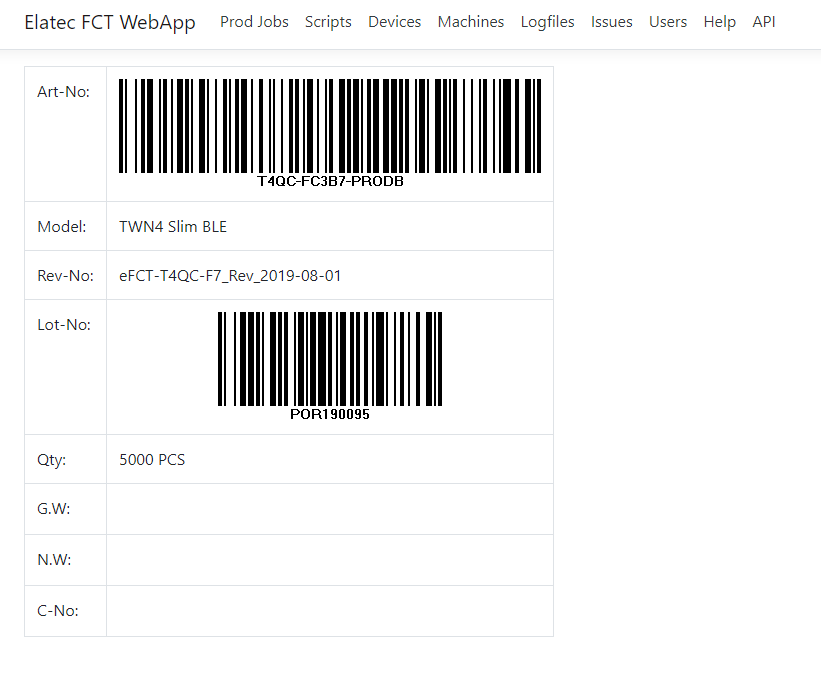
- Go to the jobs page to view the current PO. You can also view the shipping mark for each job there
- Go to the scripts page to view some details on the production scripts
- Go to the devices page to view a list of currently available FCT devices. Click on a device for details
- Go to the machines page to view a list of currently available PCs. Click on an machine to view some details
- Go to the articles page to view a list of currently available Elatec articles. Click on a article to view some details
- Go to the logfiles page to view the production log of some job
- Go to the files page to view the currently stored files on the WebApp
- The user page is only accesable to admins
- Currently you are at the help page
- Go to the API page to view help for using the script api (Editors and Admins only)
How to use the shipping mark
- Print the shipping mark for each POR and add it to all the shipping boxes
- You must not change the layout of the shipping mark or add any aditional fields!
- You must type aditional information in the field Qty, G.W, N.W and C-No. Print only with the fields filled
- Add current shipping quantitiy (Qty)
- Add Gross Weight (G.W)
- Add Net Weight (N.W)
- Add box number (C-No)
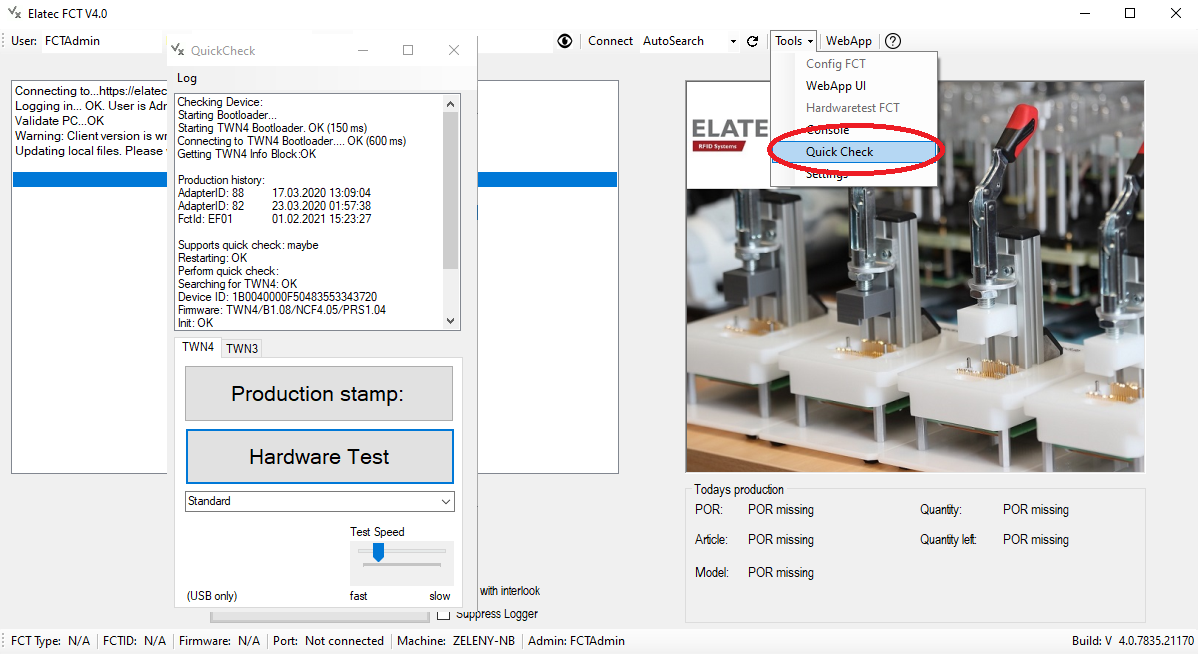
Performing quick checks
- If wanted a quick check can be performed, checking the basic reader functions and production history
- Connect the device via USB cable or use a FCT if no connector is available (e.g. for TWN4 Nano Module)
- The button "Production stamp" checks if the devices contain mandatory production history information
- The button "Hardware Test" performs a quick check of buzzer, SAM-Cards, LEDs, and RFID Tags (depends on the tested device)
- Some devices require specific test commands like SCH3. All other can use the "Standard" test command set (check the dropdown menue)
- The test speed defines how quickly the LEDs will show up. It can bs adjusted using the "Test speed" scrollbar